

Launching a Campaign
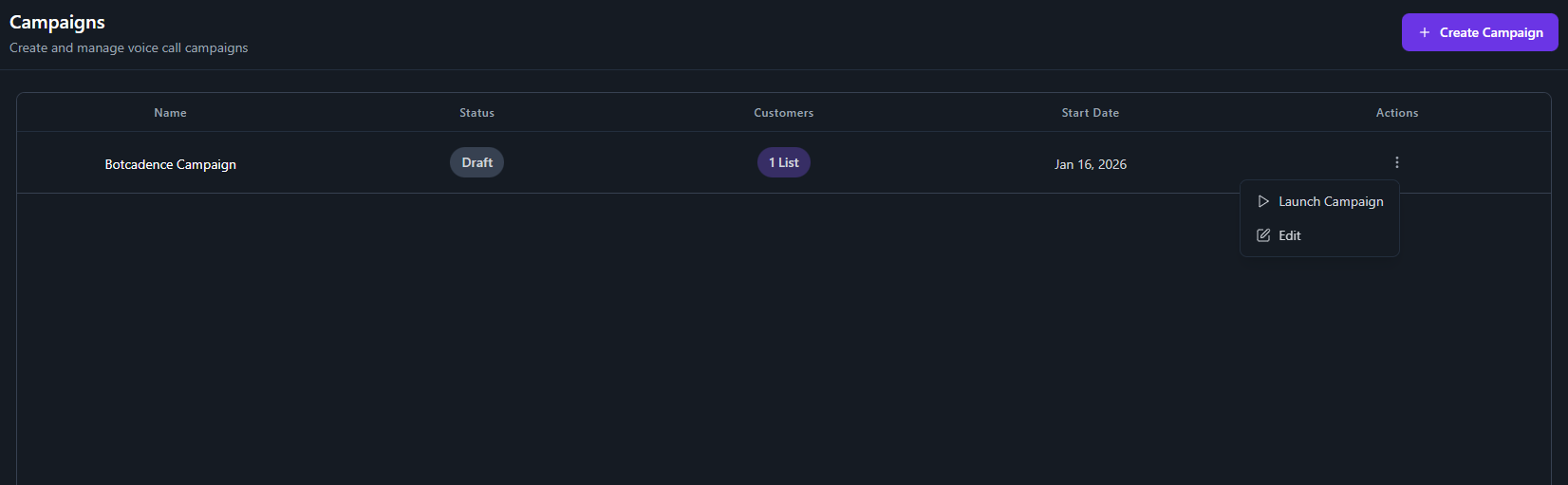
After creating a campaign, it will initially be in a Draft state. To start the campaign:- Navigate to the Campaigns list.
- Locate your campaign in the table.
- Click the Actions menu (three dots) on the right.
- Select Launch.
Monitoring & Analytics
Click on any campaign name to view its dashboard. The dashboard provides a comprehensive view of the campaign’s performance.Analytics Overview
The Analytics tab shows key metrics and a graphical representation of your campaign’s activity.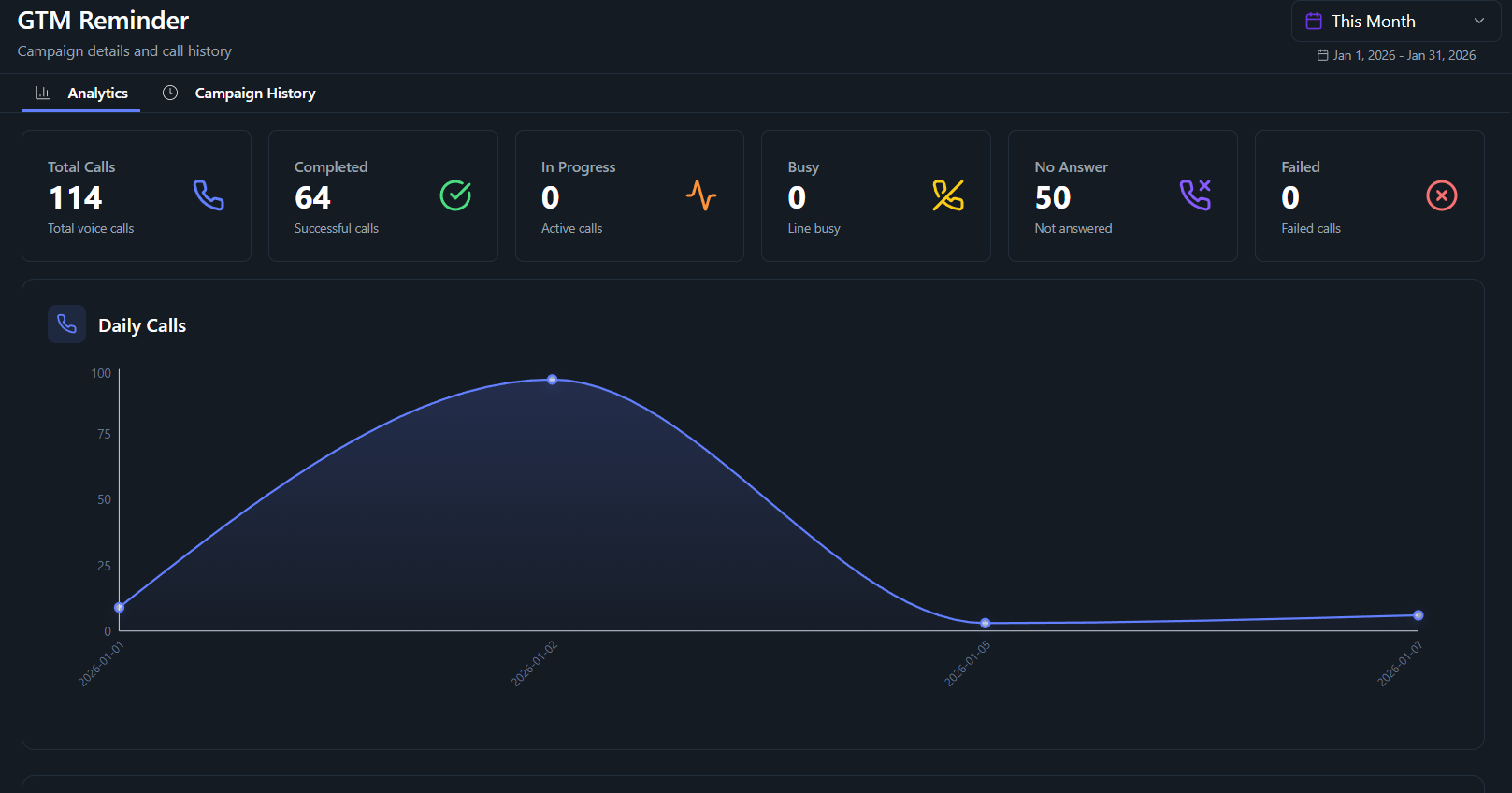
- Total Calls: The total number of calls initiated by the campaign.
- Completed: Successful calls where the agent connected with the user.
- In Progress: Valid calls currently active.
- Busy: Calls where the line was busy.
- No Answer: Calls that were not answered by the customer.
- Failed: Calls that failed due to technical issues or errors.
Campaign History
The Campaign History tab provides a detailed log of every call made within the campaign. This allows you to:- Review individual call statuses.
- Access call recordings (if enabled).
- Analyze specific interactions for quality assurance.